NERDIO GUIDE

How to automate migrating Citrix published apps and user profiles to AVD

Carisa Stringer | December 23, 2025

Introduction

Migrating from Citrix to Azure Virtual Desktop (AVD) is a strategic move for many enterprises looking to reduce infrastructure costs and simplify management. However, the technical reality of moving thousands of users—specifically their complex profiles and application entitlements—often stalls these projects. 

Automating the migration of Citrix Published Applications and User Profile Management (UPM) data to AVD is the only way to ensure a seamless cutover with minimal downtime.

This guide outlines the technical steps, PowerShell automation strategies, and tools required to successfully automate this migration path for enterprise environments.

What should I audit before automating a Citrix to AVD migration?

Before writing a single script, you must map your existing Citrix inventory to AVD concepts. Failing to audit dependencies often leads to broken applications and compromised functionality for users post-migration.

A successful audit requires a clear mental model of where your assets are going. Use the following mapping guide to translate the components of your existing Citrix environment into AVD and Nerdio terminology.
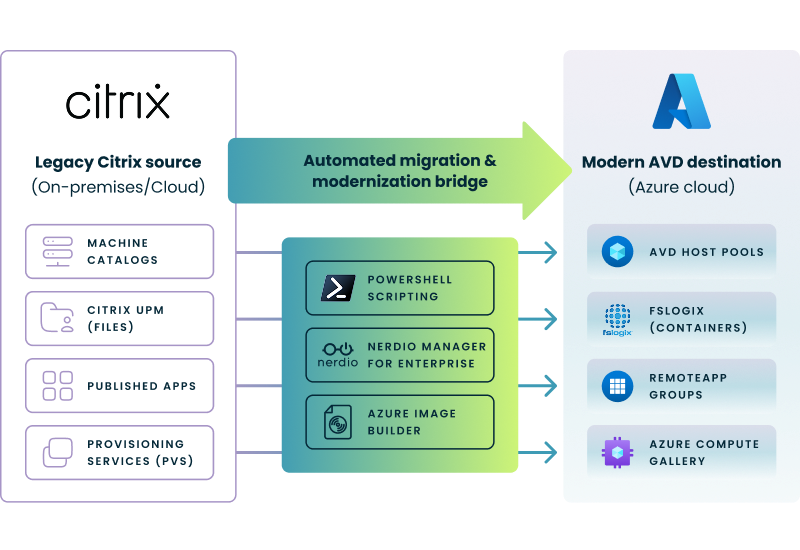
Key Infrastructure Mappings:

  • Machine Catalogs → AVD Host Pools: Your logical grouping of VMs shifts from Catalogs to Host Pools.
  • Citrix UPM → FSLogix: File-based profiles are replaced by VHDX containers.
  • Published Apps → RemoteApp Groups: Your application lists must be recreated as AVD Application Groups.
  • HDX Policies → Intune/GPO: Unlike Citrix, AVD does not manage user-level policies natively. You must audit your HDX policies and migrate them to Microsoft Intune or Group Policy Objects.

Audit Checklist:

  • Infrastructure dependencies: Identify backend dependencies (SQL, file servers) that require low-latency connectivity. If these remain on-premises, ensure ExpressRoute is configured to minimize lag.
  • Licensing Opportunities: Identify Citrix catalogs running Windows Server OS. Migrating these to Windows 11 Multi-session on AVD eliminates the need for expensive RDS CALs, offering immediate ROI. Strategies to reduce Citrix costs on Azure often begin here, as the transition to multi-session Windows 11 allows you to consolidate users onto fewer VMs without the overhead of add-on licensing fees.Additionally, verify if your current Microsoft 365 E3 or E5 subscriptions already include AVD access rights, which would further reduce your total cost of ownership compared to Citrix's named user model. This data is essential for accurate financial modeling, specifically when calculating the total cost of ownership for Citrix DaaS compared to a native AVD environment.
  • Application inventory: Audit "shadow IT" applications versus officially published apps.

Tip: Use the Citrix PowerShell SDK to export a list of Published Apps to a CSV. This allows you to validate your list against AVD Application Groups later.

How can I automate migrating Citrix UPM profiles to FSLogix?

Citrix UPM's built-in profile management solution is designed to enhance login speed and user experience but typically uses file-based replication, whereas AVD relies on FSLogix, which encapsulates profiles in VHD/VHDX containers. Because the formats are fundamentally different, you cannot simply copy the files over; you must choose between a "fresh start" or a scripted conversion.

Choosing the right migration strategy depends heavily on your data retention requirements. The following decision tree outlines the two primary paths for moving from Citrix UPM to AVD, including where automation tools fit into the process.
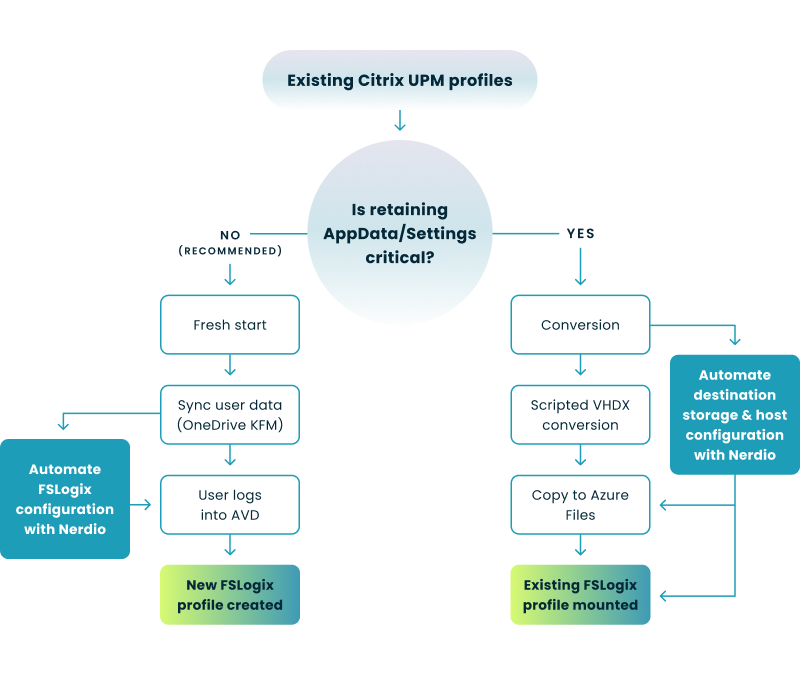
Option 1: The "Fresh Start" Approach (Recommended)

Most enterprises prefer deploying fresh FSLogix containers to eliminate "technical debt"—such as corrupted files, temp data, and bloat—accumulated in old profiles.

  • Sync User Data (OneDrive KFM): Use OneDrive Known Folder Move (KFM) to silently migrate user documents, desktop, and pictures to the cloud before the cutover.
  • Automate FSLogix Configuration (Nerdio): Instead of manually configuring registry keys on every host, use Nerdio Manager to automatically apply the correct FSLogix settings (storage paths, exclusions, and Cloud Cache) to your new AVD Host Pools.
  • The Cutover: When the user logs into AVD via the Windows App for the first time, FSLogix creates a pristine profile container, and KFM automatically syncs their critical data back down.

Option 2: Scripted Conversion (UPM to VHDX)

If preserving custom application settings (AppData) is mandatory, you can use PowerShell to convert file-based profiles to VHDX containers.

  • Key Tool: Use the FSLogixMigration PowerShell module (a Microsoft-origin module actively enhanced and maintained by the community and supported by Nerdio Manager). 
  • Manage Destination Storage (Nerdio): While specialized scripts handle the data conversion, use Nerdio to provision and manage the high-performance Azure Files Premium or Azure NetApp Files shares where these converted profiles will live.
  • Process:
    1. Mount the new FSLogix file share.
    2. Loop through existing UPM folders using a PowerShell script.
    3. Create a dynamic VHDX for each user.
    4. Copy data and ACLs (Access Control Lists) into the VHDX.
    5. Unmount and finalize the container.

How do I automate migrating Citrix Published Apps to AVD RemoteApps?

Manually recreating hundreds of application definitions is error-prone and slow. You can automate this process by exporting your Citrix configuration and using PowerShell to rebuild it in AVD.

1. Exporting Citrix Applications

Use the Citrix PowerShell SDK to export all published application names, paths, and command-line arguments to a structured file.

Get-BrokerApplication | Select-Object ApplicationName, CommandLineExecutable, CommandLineArguments | Export-Csv -Path "CitrixApps.csv"

2. Creating AVD Application Groups via PowerShell

Once you have your CSV, use the New-AzWvdApplication cmdlet to programmatically recreate these resources in AVD.

  • Script Logic: Write a script that iterates through your CSV row by row.
  • Command: For each entry, run New-AzWvdApplication to publish the RemoteApp to the specified AVD Host Pool and Application Group.

3. Packaging and Delivery

  • MSIX App Attach: For modern automation, repackage legacy apps into MSIX formats. This allows you to dynamically attach apps to sessions without installing them on the OS image.
  • Unified Management: Specialized management tools can link directly to SCCM or Intune repositories to automate the installation of these apps onto AVD session hosts, removing the need for manual packaging.

Can I automate the conversion of Citrix Machine Catalogs to AVD Host Pools?

Directly "migrating" a Citrix VDA (Virtual Delivery Agent) VM to AVD is technically possible but often discouraged due to lingering Citrix agents and registry keys. This technical debt is a common factor when weighing Citrix vs Horizon migration complexities, as both platforms leave deep artifacts that conflict with the AVD agent, making a clean build the safer approach. This constraint applies even when migrating from Citrix on Azure; although the VMs are already cloud-hosted, a clean image build is required to ensure the removal of conflicting VDA software before installing the AVD agent. You have two primary automation paths here.

Path A: The "Gold Image" Build (Recommended)

The best practice is to automate the creation of a clean "Golden Image" that matches your Citrix specifications.

  • Automation: Use Azure Image Builder (AIB) or HashiCorp Packer to script the build of your image. You define your configuration (OS + Apps) in a JSON template.
  • The Pipeline: Packer spins up a temporary VM, installs software/updates, runs Sysprep, and saves the final image to the Azure Compute Gallery.

Path B: The "Lift and Shift" Import

If you have a complex legacy image that cannot be easily rebuilt, you can migrate the VHD directly.

  • Snapshot & SAS: Take a snapshot of your Citrix master image and generate a SAS (Shared Access Signature) URL.
  • Nerdio Image Import: Use Nerdio’s "Add from Azure Library" feature to ingest the image using the SAS URL. Nerdio will automatically handle the VM generation and preparation for AVD deployment.

How does Nerdio Manager for Enterprise simplify Citrix to AVD migration?

While the PowerShell methods above are effective, they require significant development time and ongoing maintenance. Nerdio Manager for Enterprise (NME) provides a unified platform that automates these complex tasks through a GUI, eliminating the need for custom scripts. 

  • Unified Image Management: Nerdio removes the complexity of Packer or Azure Image Builder. You can manage "Desktop Images" directly in the console, schedule updates, and automatically push new images to AVD Host Pools without downtime.
  • One-Click Profile Management: NME simplifies FSLogix implementation. You can simply check a box to enable "FSLogix Profiles," "Cloud Cache" (for high availability), and "Profile Shrinking" (to automatically reduce storage costs).
  • Cost-Efficient Auto-Scaling: Citrix Autoscale is notoriously complex. Nerdio’s auto-scaling engine is pre-configured for AVD, allowing you to power down VMs when users log off and "pre-stage" hosts before shifts begin. This logic, combined with removing RDS CALs via Windows 11 Multi-session, can save organizations up to 70% on compute and licensing costs.
  • App Lifecycle Management: With Nerdio Unified Application Management (UAM), you can connect to existing repositories (Intune, SCCM, Winget) and push applications to your AVD Host Pools automatically. This bridges the gap between legacy Citrix app publishing and modern AVD management.

For a deeper dive into architectural comparisons, licensing differences, and detailed workflows beyond just automation, read our full guide on Migrating from Citrix to AVD with Nerdio.

Optimize and save

See how you can optimize processes, improve security, increase reliability, and save up to 70% on Microsoft Azure costs.

Frequently asked questions


About the author

Photo of Carisa Stinger

Carisa Stringer

Head of Product Marketing

Carisa Stringer is the Head of Product Marketing at Nerdio, where she leads the strategy and execution of go-to-market plans for the company’s enterprise and managed service provider solutions. She joined Nerdio in 2025, bringing 20+ years of experience in end user computing, desktops-as-a-service, and Microsoft technologies. Prior to her current role, Carisa held key product marketing positions at Citrix and Anthology, where she contributed to innovative go-to-market initiatives. Her career reflects a strong track record in driving growth and adoption in the enterprise technology sector. Carisa holds a Bachelor of Science in Industrial Engineering from the Georgia Institute of Technology.

Ready to get started?