Desktop as a Service (DaaS): a guide for enterprise IT
Desktop as a Service (DaaS) delivers cloud-hosted desktops over the internet. A 2026 guide on Windows 365 and Azure Virtual Desktop.
G2 Names Nerdio a Leader Across Fall 2026 Reports for Desktop as a Service Read the blog
Desktop as a Service (DaaS) delivers cloud-hosted desktops over the internet. A 2026 guide on Windows 365 and Azure Virtual Desktop.
Amol Dalvi | June 25, 2025
Table of Contents
Desktop as a Service (DaaS) is a cloud model where a provider hosts virtual desktops and streams them to your users over the internet. For most enterprises in the Microsoft ecosystem, DaaS means two products: Windows 365 and Azure Virtual Desktop. Microsoft groups both under an umbrella it calls Windows Cloud.
While we recognize AVD is not truly a DaaS service, Microsoft includes it in their Windows Cloud solutions so for this article we will go over both offerings. Many enterprises run both. Each product fits a different group of users, and the real work is managing them together without breaking the team.
This guide covers what DaaS means today, the delivery models underneath it, how it compares to on-premises virtual desktop infrastructure and physical endpoints, and what it takes to run Windows 365 and Azure Virtual Desktop at scale.
Desktop as a Service is a cloud model where a provider hosts virtual desktops and streams them to your users over the internet. Your team gets a full Windows desktop with their files, applications, and policies on any device. The operating system runs in the cloud; the endpoint just displays it.
DaaS is the standard market term for this category. In the Microsoft ecosystem, two products dominate:
Many enterprises run both. Windows 365 handles information workers, frontline staff, and contractors who need a consistent PC-like experience. Azure Virtual Desktop handles teams that need shared hosts, custom configurations, or GPU workloads. Treating one as a replacement for the other usually ends in a bad fit.
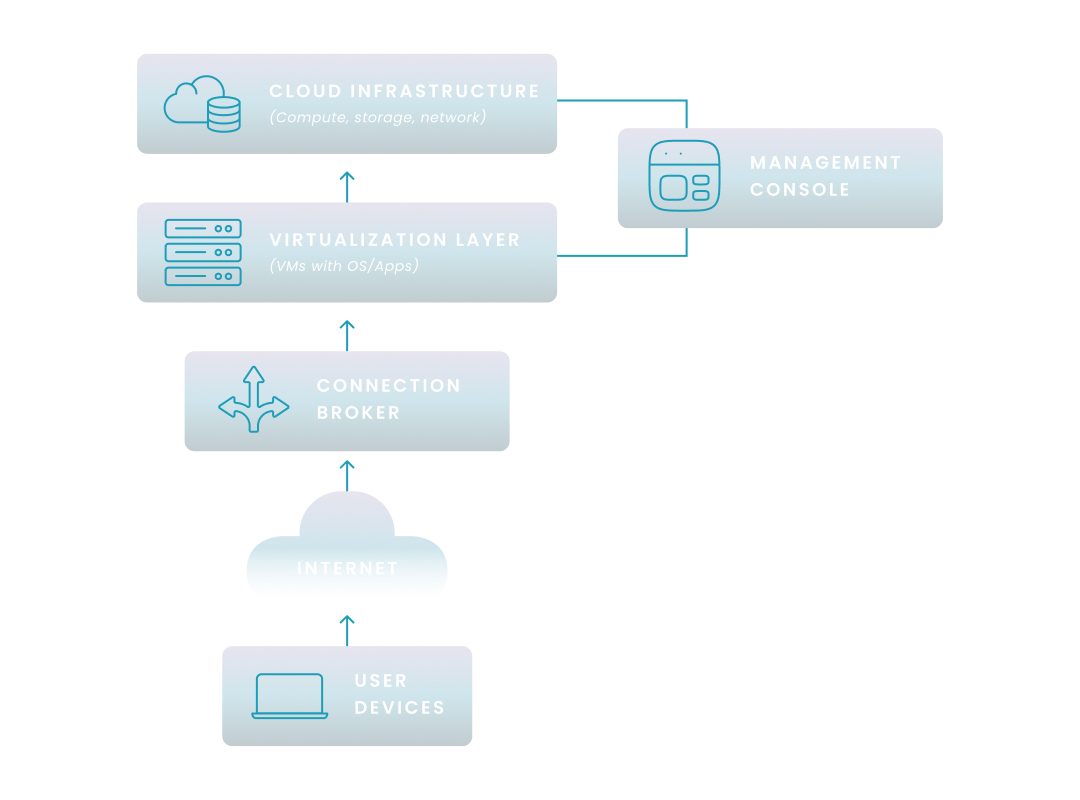
A DaaS setup has a cloud provider doing the heavy lifting at the back end and a thin client or browser doing almost nothing at the front. Between them sits a control layer that authenticates users and connects them to their desktops.
A DaaS deployment has five moving parts.
For Windows 365 and Azure Virtual Desktop, Microsoft runs most of that infrastructure. You manage identity, images, applications, policies, and users through a mix of Azure, Intune, and whatever management layer sits on top.
Users reach a DaaS desktop in one of two ways. They install the Windows App (Microsoft's unified client, formerly Remote Desktop Client) on their device, or they open a browser and sign in to a web portal. After authentication, the connection broker routes them to their assigned desktop and the session streams to the endpoint.
Enterprise DaaS deployments integrate with Microsoft Entra ID for single sign-on and require multi-factor authentication. The display protocol handles the graphics, audio, USB, and printer redirection over the network. Azure Virtual Desktop uses Microsoft's Remote Desktop Protocol with Shortpath. Windows 365 uses the Windows App client stack.
In the cloud, not on the endpoint. Applications are either installed on a master image or delivered dynamically to the virtual desktop at login. User data sits in one of three places: inside a persistent desktop, on centralized cloud storage, or inside a containerized profile. In Azure Virtual Desktop non-persistent environments, FSLogix manages those profile containers. Windows 365 Cloud PCs are persistent by design and store user profiles natively.
You control the data, policies, and applications. The provider runs the infrastructure underneath.
DaaS delivery models differ on two axes: whether user data survives between sessions, and whether each user gets their own virtual machine. For Microsoft shops, there's a third axis: Windows 365 vs. Azure Virtual Desktop.
Persistent desktops save each user's settings, apps, and data between sessions. Non-persistent desktops reset to a standard image every time a user logs off. Many large organizations run both, matching the model to each group of users.
|
Attribute |
Persistent |
Non-persistent |
|---|---|---|
|
Personalization |
User settings, apps, and data save between sessions |
Desktop reverts to a golden image at logoff; profile data managed separately |
|
Management |
Each desktop managed individually, more storage required |
One image for many users, patches applied centrally |
|
Cost |
Higher per user |
Lower per user |
|
Best fit |
Developers, executives, power users, anyone installing specialized software |
Task workers, call centers, training labs, shift workers |
The choice isn't either/or. It's which users get which model, and whether your management tools can run both without doubling the admin work.
Single-session means one user per virtual machine. It feels like a physical PC and handles any application, but it costs more per user. Multi-session lets several users share one larger VM. Windows 11 Enterprise multi-session on Azure is the common example. Multi-session is cheaper because many users share one VM, but the applications have to work in a shared operating system.
Single-session fits users running heavy or compatibility-sensitive software. Multi-session pooled desktops fit standard knowledge workers running Microsoft 365 and everyday business apps.
Windows 365 is the flat-rate, simpler option. Azure Virtual Desktop is the flexible, consumption-based option. Both are Microsoft cloud desktop products. The real difference is how you buy them, how you pay for them, and what your admins manage day to day.
|
Attribute |
Windows 365 |
Azure Virtual Desktop |
|---|---|---|
|
Pricing |
Flat, per user, per month |
Consumption-based (Azure compute + storage + licensing) |
|
Customization |
Limited |
Fully configurable |
|
Session model |
Single-session only (one Cloud PC per user) |
Single or multi-session |
|
Best for |
Information workers, contractors, frontline shifts |
Teams needing shared hosts, custom images, or GPU |
|
Management |
Primarily Microsoft Intune |
Azure Portal, PowerShell, and Microsoft Intune |
Windows 365 is the easier path to a per-user cloud desktop. Azure Virtual Desktop is the cheaper path at scale, if you can manage it well. Many enterprises end up running both, because different groups of users need different cost models. For a side-by-side cost view, see our AVD vs. Windows 365 breakdown.
Compared to an on-premises desktop fleet, DaaS improves cost predictability, lets you scale in minutes rather than weeks, tightens security by keeping data off endpoints, supports remote and hybrid work, reduces IT overhead, and builds business continuity into the infrastructure. The specifics depend on the product.
DaaS turns desktop spending into a subscription. Windows 365 is flat per-user, so finance can forecast it to the dollar. Azure Virtual Desktop is consumption-based, so the cost depends on how many hours your VMs run and how big they are. Managed well, it can be cheaper than Windows 365 at scale. Sage reported 62 to 65 percent savings on VM costs and more than $1M in annual savings after moving to Azure Virtual Desktop with Nerdio. Windows 365 is predictable by design. Azure Virtual Desktop becomes predictable through auto-scaling and right-sizing.
New users get a desktop in minutes instead of the weeks it takes to procure and image a laptop. The same applies in reverse: when a contract ends, you reclaim the license. Newfoundland's provincial health authority stood up 1,700 healthcare workers on Azure Virtual Desktop in five days. That kind of speed is hard to match with physical hardware.
Sensitive data lives in the cloud, not on endpoints. A lost laptop becomes a password reset, not a breach. Policies, patches, and baselines apply consistently across every desktop from one central console. Microsoft's cloud infrastructure holds certifications including ISO 27001, SOC 2, HIPAA, and PCI DSS, which help with your own compliance requirements. You still own identity, access, and data governance above the infrastructure.
Employees reach their full work desktop from a home laptop, client site, or shared kiosk. Bring-your-own-device (BYOD) policies get easier to manage because the corporate environment never lives on the personal device.
The cloud provider runs the backend. Your team stops patching physical machines and managing hardware lifecycles and starts managing identity, images, and policy. Ossur, a medical devices company based in Iceland, reported roughly 70 percent reductions in licensing costs and a smaller team able to run the whole environment after leaving Citrix for Azure Virtual Desktop on Nerdio.
When an office loses power or network, desktops keep running. Users reach their environment from any location with an internet connection. Recovery times compress because the desktops were never tied to a single physical site.
DaaS puts the infrastructure in the cloud, run by the provider. On-premises VDI keeps the infrastructure in your data center, run by your team. Physical desktops run the operating system directly on the user's device.
|
Attribute |
DaaS |
On-premises VDI |
Physical desktops |
|---|---|---|---|
|
Infrastructure ownership |
Provider |
Enterprise |
Enterprise (endpoints only) |
|
Cost model |
OpEx, subscription |
CapEx-heavy, ongoing OpEx |
CapEx + ongoing support |
|
Scalability |
Elastic, minutes to provision |
Moderate, infrastructure planning required |
Low, one device at a time |
|
IT expertise |
Cloud service management, identity, images |
VDI, virtualization, storage, networking |
Endpoint management, hardware support |
|
Primary benefit |
Workforce agility and simplified infrastructure |
Granular control inside your own data center |
Dedicated local resources, full offline |
The core difference is where the infrastructure lives and who runs it. On-premises virtual desktop infrastructure means you own the servers, storage, hypervisor, and the specialized team required to keep them running. DaaS means the provider owns that stack and you pay a subscription.
DaaS lowers upfront cost and shifts operational burden off your IT team. On-premises VDI keeps everything under your direct control, which some regulated workloads still require. The trend across many enterprises is a migration path from Citrix or legacy VDI into Azure Virtual Desktop and Windows 365, usually driven by renewal pressure, rising licensing costs, or the need to modernize aging infrastructure.
Four situations consistently push enterprises toward DaaS: a growing remote or hybrid workforce, tight security and compliance requirements, rapid scaling needs during growth or M&A, and a desire to reduce the IT overhead of patching and supporting a physical fleet. DaaS also extends the life of existing endpoints, since the processing power is in the cloud.
VDI still wins when regulators require infrastructure to stay on-premises under your direct control. Secure DaaS offerings now cover most regulated workloads, but a few hold-outs remain. Physical desktops still win for two cases: heavy graphics workloads on unreliable internet, and specialized legacy peripherals that need local hardware access.
A typical enterprise DaaS migration has five phases:
Inventory every application and classify it by compatibility with a virtualized multi-user environment, performance profile, and licensing model. Segment users by role and workload: task workers, knowledge workers, developers, power users with GPU requirements. That segmentation tells you which users go on Windows 365, which go on Azure Virtual Desktop, and which mix of persistent and non-persistent sessions each group needs.
DaaS experience depends on stable, low-latency internet. Assess WAN capacity for offices and typical home connections for remote workers. Bandwidth per user varies with screen resolution, monitor count, and workload. Video conferencing and graphics-intensive applications consume more. Software-defined WAN (SD-WAN) or similar network optimization helps when existing connectivity isn't enough.
Security in DaaS is a shared job. The provider handles the infrastructure certifications and encryption; you handle identity, access, and data policy. Start by checking the provider's certifications (SOC 2, ISO 27001, HIPAA attestations) and encryption practices. Then integrate DaaS with Microsoft Entra ID for single sign-on, enforce multi-factor authentication, and plan for data residency where regulations apply. Apply conditional access policies to both the desktops and the identities connecting to them.
User experience makes or breaks DaaS adoption. Set performance expectations, run a pilot with real users, and support common peripherals like printers, scanners, and multiple monitors. Build a communication and training plan. Monitor user feedback and session telemetry after go-live.
Uptime guarantees of 99.9 percent or higher. Response times tied to issue severity. Escalation procedures in writing. Clear boundaries between what the provider maintains and what your team owns.
Some enterprises hit DaaS return on investment in a single quarter. Others spend two years migrating and never get there. The difference is usually fit. Three patterns show up in the fastest-moving deployments.
Financial services, healthcare, legal, and government teams running Citrix or legacy VDI are the clearest fit. There's usually a forcing function: a Citrix renewal, a compliance audit, or an infrastructure refresh that won't pass another fiscal year. There's also a regulated workload where auditors want to see policy enforcement and data residency controls. Microsoft's compliance certifications on Azure compress the review that usually slows Citrix-alternative evaluations.
All three left Citrix or legacy VDI and landed on Microsoft under a management layer that absorbed the operational lift their internal team couldn't.
Stand-up-and-tear-down speed is where DaaS pulls the furthest ahead of physical desktops. A new acquisition needs access to corporate applications in days; a contractor team ends in six months with laptops to reclaim. Cloud desktops provision in minutes and reclaim when the contract ends.
None of these teams could have matched that speed with physical hardware, and none of them wanted to.
If your workforce includes shift workers whose hours never overlap, the standard per-user Windows 365 license is usually overkill. Windows 365 Frontline licenses cover three non-overlapping users for roughly twice the cost of one enterprise license, which can cut per-seat spend sharply for this pattern.
Nerdio Advisor identifies shift patterns automatically and recommends Frontline license conversions where they'd save money. Without that kind of telemetry, most IT teams default to enterprise licensing across the workforce and never notice the over-spend.
Across these patterns, the common thread is using DaaS to absorb workforce complexity rather than pay for more of it. Grant Thornton reported $20,000 per month in savings on 330 concurrent users. Syneos Health, a clinical research organization, reported 70 percent faster configuration changes after switching to Nerdio. With the right management layer on top, a smaller team can run a bigger DaaS environment.
DaaS in 2026 is getting more tightly wired into Microsoft's endpoint management stack. Two shifts are worth watching.
Microsoft Intune is becoming the management substrate for both Windows 365 and AVD. Intune's Endpoint Privilege Management extended to AVD single-session VMs in early 2026. The full Intune Suite ships with Microsoft 365 E5 starting July 2026, with a partial set added to E3. The Intune skill set IT already uses now covers more of the cloud desktop estate, though the primary Intune relationship still sits with Windows 365.
Digital employee experience is becoming measurable. Connection quality, latency, and application load times now appear on live dashboards instead of in quarterly satisfaction surveys. Teams running DaaS at scale need a single pane across Windows 365 and Azure Virtual Desktop, since managing them separately hides the problems that only surface across the stack. Expect DEX monitoring to move from a premium add-on to an expected feature in any enterprise DaaS stack.
If you're running Windows 365, Microsoft Intune, and Azure Virtual Desktop, or planning to, Nerdio Manager for Enterprise gives you one console to manage all three. Fewer clicks, faster changes, more predictable cost, and the same admin workflow for both Windows Cloud products.
That shows up in five specific places.
Together, these give your team one management layer across Windows 365, Intune, and Azure Virtual Desktop, so you stop switching between three portals and two sets of admin workflows to get through the day.
If you're planning a DaaS strategy across Windows 365 and Azure Virtual Desktop, Nerdio Manager for Enterprise is built for exactly that. Schedule a demo or try it free in your own Azure tenant.
No. VDI (virtual desktop infrastructure) describes the on-premises model where your organization owns and runs the servers, storage, and hypervisor. DaaS is the cloud model where a provider owns and runs that infrastructure and you subscribe. The user experience is similar. The ownership, cost model, and operational burden are different.
It depends on the product and the workload. Windows 365 is flat-rate per user per month, with published pricing from Microsoft. Azure Virtual Desktop is consumption-based, priced on Azure compute, storage, networking, and the required Microsoft 365 licensing. Well-managed AVD is often cheaper than Windows 365 at scale, but cost efficiency depends on auto-scaling, right-sizing, and how your workloads actually run. Our hidden cloud desktop costs guide covers the line items most teams miss.
Windows 365 and Azure Virtual Desktop both appear in the Gartner DaaS market category. At the Microsoft product level, Windows 365 is Microsoft's DaaS Cloud PC. It's flat-rate, fully managed, and primarily administered through Microsoft Intune. Azure Virtual Desktop is a desktop and app virtualization service built on Azure. It's consumption-based, more configurable, and managed through the Azure Portal, PowerShell, and Microsoft Intune. Many enterprises use both for different user groups.
Yes. Microsoft's DaaS infrastructure holds certifications including ISO 27001, SOC 2, HIPAA, and PCI DSS. Regulated industries including healthcare, financial services, and legal run production workloads on Azure Virtual Desktop and Windows 365. You still own identity, access, and data governance above the infrastructure, so compliance outcomes depend on how you configure the environment, not just the platform.
Persistent desktops save user settings, applications, and data between sessions, like a physical PC. Non-persistent desktops revert to a golden image at logoff, with user data managed centrally. In Azure Virtual Desktop non-persistent environments, profile tools like FSLogix handle containerized user data. Windows 365 Cloud PCs are persistent by design and manage user profiles natively. Persistent fits power users. Non-persistent fits standardized task work in Azure Virtual Desktop environments. Many enterprises run both models across different user groups. For deeper detail, see our persistent vs. non-persistent guide.


Software product executive and Head of Product at Nerdio, with 15+ years leading engineering teams and 9+ years growing a successful software startup to 20+ employees. A 3x startup founder and angel investor, with deep expertise in Microsoft full stack development, cloud, and SaaS. Patent holder, Certified Scrum Master, and agile product leader.