How to autoscale Azure
This guide outlines how to configure native Azure autoscaling, details common limitations, and compares native methods with advanced logic.
Carisa Stringer | December 22, 2025
Azure autoscaling is the process of dynamically adding or removing cloud resources, such as Virtual Machines (VMs) and Azure Virtual Desktop (AVD) session hosts, to align with fluctuating workload demands. For IT professionals, mastering this capability is essential. It serves as the primary mechanism for balancing consistent user performance during peak operations against strict budget controls.
This guide details the configuration of native Azure scaling rules, identifies common enterprise limitations, and examines how third-party optimization tools like Nerdio address gaps in native logic.
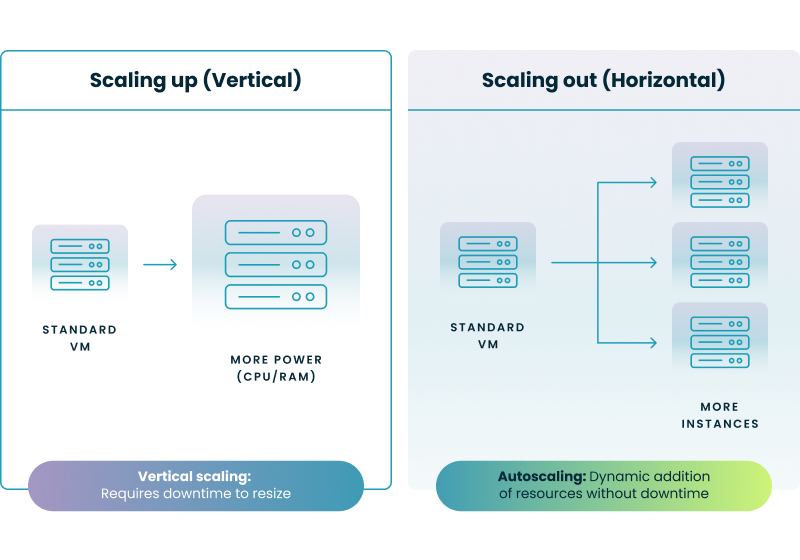
Azure autoscaling is a "scale-out" (horizontal) and "scale-in" mechanism that adjusts your infrastructure footprint based on usage metrics. Unlike "scaling up" (vertical scaling), which increases the power of a single server, autoscaling adds or removes entire instances to handle fluctuating load.
The diagram below highlights the structural difference between these two approaches:
At its core, the Azure native autoscaling engine relies on Azure Monitor to track specific metrics and trigger the pre-defined autoscale rules configured within your autoscale settings. When a threshold is breached, an action is executed.
When these rules trigger, Azure executes an operation on your Virtual Machine Scale Set (VMSS) or AVD Host Pool, effectively provisioning new capacity (scale-out) or deallocating existing resources (scale-in) to save money. In standard application scenarios, this process works in tandem with an Azure Load Balancer to ensure that incoming network traffic is efficiently distributed across the newly provisioned instances.
Configuring native autoscaling requires you to define a resource group, a scalable resource (like a VMSS), and a set of logic rules. While powerful, the native path often involves significant manual configuration or PowerShell scripting. This operational overhead increases for organizations leveraging Azure Local, where maintaining consistent autoscaling logic across both cloud and on-premises infrastructure often requires custom development.
Native AVD autoscaling uses a feature called "Autoscale scaling plans."
Note: Native AVD scaling treats "Pooled" and "Personal" host pools differently. You generally cannot mix logic types effectively without creating separate plans.
While native tools are free to use, they often lack the "business context" required for complex enterprise environments. This gap leads to two main problems: frustrated users (due to poor performance) or frustrated finance teams (due to wasted spend).
Nerdio Manager for Enterprise sits on top of Azure to provide "logic" that native tools miss. The key difference is that Nerdio scales based on user behavior and cost-efficiency, whereas native Azure scales based on server statistics.
This table outlines the functional differences:
| Native Azure Autoscaling | Nerdio Manager Autoscaling | |
|---|---|---|
| Primary Trigger | CPU, RAM, Time Schedules | Available Sessions, User Counts, CPU, RAM |
| Scale-In Logic | Basic VM shutdown (often disruptive) | Intelligent Drain Mode (waits for logout) + Empty Host cleanup |
| Storage Optimization | Manual / Scripted only | Auto-scale Storage: Swaps Premium SSD to HDD when VM stops |
| Heal Capability | None (requires manual intervention) | Auto-Heal: Detects and repairs broken hosts automatically |
| Cost Savings | Moderate (Compute only) | High (Compute + Storage + Just-in-Time provisioning) |
Nerdio addresses the limitations of native scaling by introducing "intent-based" automation. Instead of just reacting to CPU spikes, it anticipates user needs.
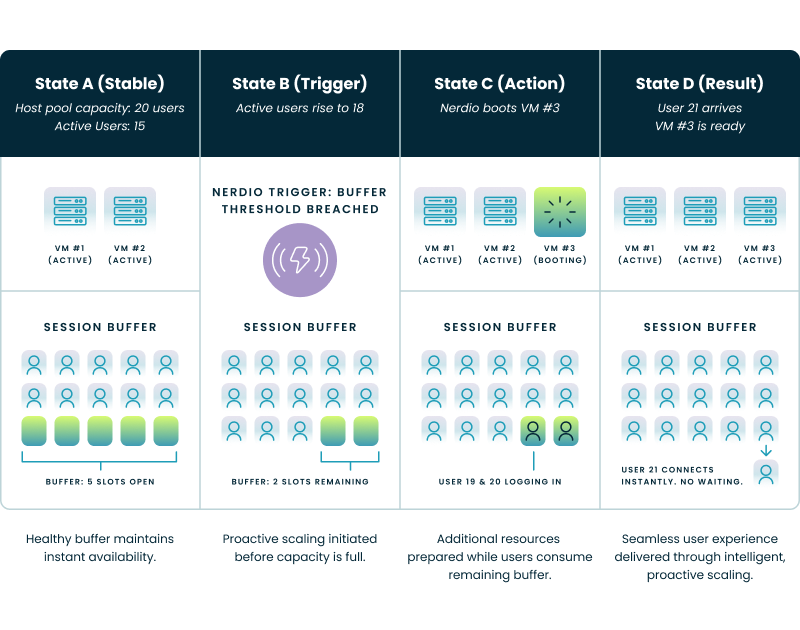
Nerdio uses a "Buffer" logic (such as, "Always keep 2 sessions open") to proactively manage user demand. This ensures that new capacity is available before users need it, eliminating the "boot storm" delays common with native CPU-based triggers.
The diagram below illustrates how this proactive logic prevents users from waiting for a VM to boot:
This is a unique cost-saver. A running VM needs a fast, expensive Premium SSD. A stopped VM does not. Nerdio automatically downgrades the OS disk to a cheap Standard HDD the moment the VM stops, and upgrades it back to SSD seconds before it starts. This alone can save ~75% on storage costs for non-persistent machines.
Rather than a simple "Ramp-up" time, Nerdio allows for granular pre-staging. You can specify exactly how many hosts should be ready by 8:00 AM, ensuring the morning login wave is smooth, without paying for those VMs to run all night.
Native Azure struggles to scale "Personal" (1:1 assigned) desktops efficiently. Nerdio allows you to power off a personal desktop automatically when the specific user logs off or disconnects, and power it back on—via a "Start on Connect" feature—the moment they try to access it again.

Whether you use native tools or Nerdio, adhering to these engineering principles will save you from outage scenarios and "bill shock." Implementing these safeguards is a critical step in establishing the best practices for using automation and auto-scaling to manage AVD cost and performance.
Autoscaling is the difference between a cloud environment that burns cash and one that drives value. While native Azure autoscaling provides the fundamental building blocks for simple, static workloads, it often requires significant manual effort to tune for complex, user-centric environments.
For enterprise IT teams managing Azure Virtual Desktop or dynamic VM workloads, Nerdio offers a necessary layer of intelligence. By scaling based on actual user sessions and automating storage tiering, it solves the technical gaps left by native tools—delivering a smoother user experience and deeper cost reductions.
Next Step: Are you overpaying for your Azure compute and storage? Use Nerdio’s Cost Estimator to model your environment and see exactly how much you could save with optimized autoscaling logic.
See how you can optimize processes, improve security, increase reliability, and save up to 70% on Microsoft Azure costs.
To configure autoscaling in Azure, you primarily use Azure Monitor to define rules for resources like Virtual Machine Scale Sets (VMSS) or App Services. You establish a "scale-out" rule (e.g., add an instance when CPU usage exceeds 70%) and a "scale-in" rule (e.g., remove an instance when CPU drops below 30%) to ensure capacity matches demand.
Yes, Azure Functions autoscale automatically when using the Consumption or Premium plans, where the "scale controller" adds instances based on event triggers (like HTTP requests or queue messages). However, if you are on a Dedicated (App Service) plan, the functions do not autoscale by default and are limited by the fixed resources of the specific App Service Plan you chose.
The Azure equivalent of an AWS Auto Scaling group is a Virtual Machine Scale Set (VMSS). This resource allows you to deploy and manage a group of identical, load-balanced virtual machines that automatically increase or decrease in number based on defined metrics or schedules.
You typically cannot dynamically resize (vertical scaling) a single running Azure VM without a reboot; changing the VM size (SKU) requires the machine to be stopped and restarted to reallocate resources on the physical host. For true dynamic scaling without downtime, you should use horizontal scaling (adding more VM instances) via a Virtual Machine Scale Set rather than resizing an individual server.
Automatic scaling relies on Azure Monitor to continuously collect and analyze metrics (such as CPU, memory, or thread counts) from your resources. When the data breaches a specific threshold you have defined in your autoscale profile, the Azure Resource Manager (ARM) triggers an API call to provision new instances (scale out) or terminate existing ones (scale in).
Carisa Stringer
Head of Product Marketing
Carisa Stringer is the Head of Product Marketing at Nerdio, where she leads the strategy and execution of go-to-market plans for the company’s enterprise and managed service provider solutions. She joined Nerdio in 2025, bringing 20+ years of experience in end user computing, desktops-as-a-service, and Microsoft technologies. Prior to her current role, Carisa held key product marketing positions at Citrix and Anthology, where she contributed to innovative go-to-market initiatives. Her career reflects a strong track record in driving growth and adoption in the enterprise technology sector. Carisa holds a Bachelor of Science in Industrial Engineering from the Georgia Institute of Technology.